Journaling7 min read
What Chart Settings to Record With a Trading Journal Screenshot
A practical trading journal chart settings checklist for recording symbol, timeframe, session, time zone, adjustments, and indicator inputs.
By TerraTrade Team
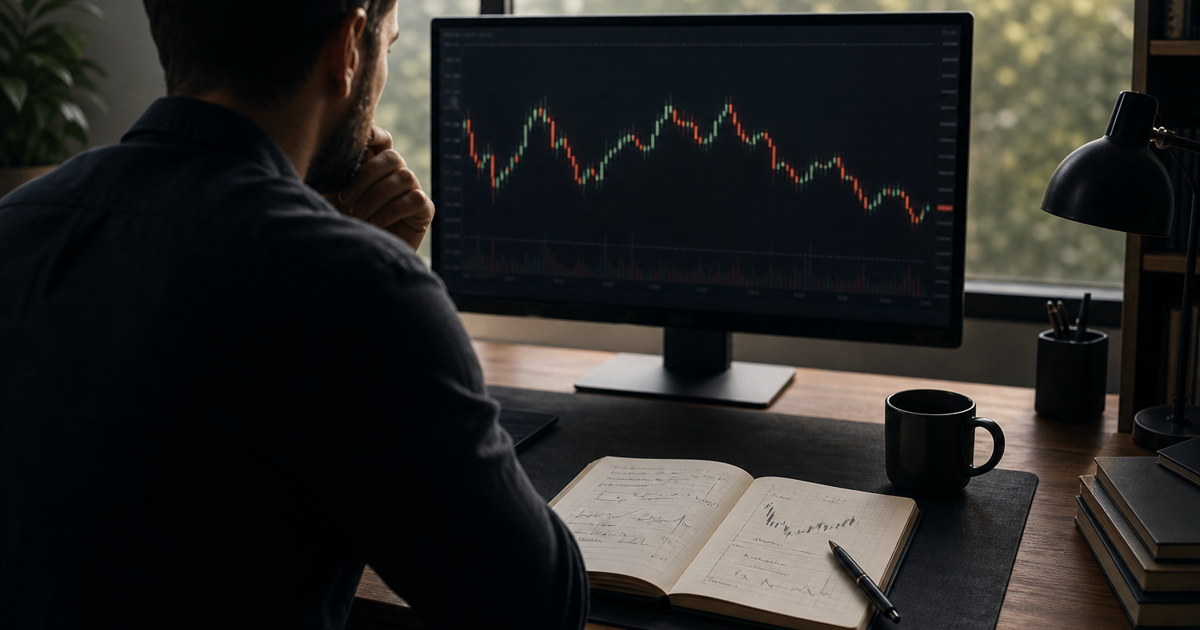
Why chart settings matter#
A trading-journal screenshot can preserve what a chart looked like, but the image alone may not explain how that view was configured. Two screenshots with the same ticker can differ because they use different contracts, bar intervals, sessions, time zones, price adjustments, or indicator inputs. Those differences can change which bars appear, how they are grouped, or where an indicator plots. How to configure your Supercharts — TradingView
The practical goal is not to record every preference in a trading platform. It is to record enough chart-view metadata that a later reviewer can judge whether two images are comparable—and identify the settings that might explain a difference. Treat the card below as documentation, not evidence that a chart configuration improves trading results.
A compact record is usually enough. For example: Platform + data feed [ ]; symbol/contract [ ]; timeframe/type [ ]; session [ ]; chart zone [ ]; adjustments [ ]; indicators + inputs [ ].
| Field | What to record | Why it helps comparison |
|---|---|---|
| Platform and data source | Platform, and the displayed exchange or data source if available | Different feeds or platform conventions may affect the displayed chart. |
| Symbol or contract | Full symbol; exchange if shown; exact futures expiration or continuous-series status | A ticker-like label may refer to a specific contract or a constructed continuous series. Symbol search: find any symbol on TradingView — TradingView |
| Timeframe and bar type | Interval and chart type, such as 5-minute candles or daily bars | Different intervals or bar constructions do not show the same aggregation. Chart configuration includes interval settings. Chart Settings |
| Session template | Regular, extended, 24-hour, or custom; add custom hours if applicable | Session selection can change which trading hours and bars appear. How to configure your Supercharts — TradingView Trading Sessions — TradingView |
| Time zone | Exact chart time zone; use a named region when available | The same bar can carry a different displayed clock time under a different zone. https://www.tradingview.com/support/solutions/43000476526-is-there-a-way-to-change-chart-timezone-or-clock-time-at-the-bottom-of-the-chart/ |
| Price-adjustment mode | Adjustment type and state, such as dividend adjustment (if available) or futures back-adjustment | Adjustment settings can change historical price values, especially around distributions or futures rolls. How to configure your Supercharts — TradingView How can I enable backadjustment for continuous futures? — TradingView |
| Indicators | Name, parameters, input/source series, and relevant session or zone inputs | Indicator settings affect its calculation and display; a name alone may not reproduce it. How to configure your Supercharts — TradingView |
Use this short procedure when adding chart metadata to a journal entry. The point is consistent recording, not a longer screenshot ritual.
- Identify the instrument precisely. Record the full symbol visible in the platform. For futures, say whether the chart is a named expiration or a continuous series; if it is an exact contract, include its expiration month and year. TradingView documents separate symbol identification for continuous futures and exact contracts. Symbol search: find any symbol on TradingView — TradingView
- Write down the aggregation. Record the interval and chart type: for example, “5-minute candles,” “daily bars,” or the non-time-based chart type shown by the platform. If the platform offers a setting that changes how bars are built, include it when it could affect the comparison. Chart interval is a configurable chart setting. Chart Settings
- Name the session selection. Write the selected template, not merely “market hours.” Use the platform’s label where possible—such as regular or extended—and describe custom start and end times if you created a custom session. TradingView documents session choices and session configuration. How to configure your Supercharts — TradingView Trading Sessions — TradingView
- Record the chart’s time zone separately from the session. Note the exact zone displayed in chart settings. Some platforms allow a named regional zone or a fixed UTC offset; record the exact zone shown. A session can also include its own time-zone input. Trading Sessions — TradingView https://www.tradingview.com/support/solutions/43000476526-is-there-a-way-to-change-chart-timezone-or-clock-time-at-the-bottom-of-the-chart/
- State the adjustment mode explicitly. For stocks or funds, note whether dividend adjustment is enabled if the platform provides that setting. For continuous futures, record whether back-adjustment is on or off. Back-adjustment changes prior-contract data in the continuous series to address roll gaps, so the historical prices may differ from an unadjusted series. How to configure your Supercharts — TradingView How can I enable backadjustment for continuous futures? — TradingView
- List indicators with the inputs that matter. Include each indicator’s displayed name, key parameters, input or source series, and custom session or time-zone settings where applicable. If an indicator is modified, use its actual settings rather than a generic label such as “moving average.”
- Mark unknowns and exceptions. If the screenshot crops out a setting, the platform does not expose it, or you cannot verify it later, say so. A transparent gap in the record is more useful than a confident guess.
Common comparison traps#
A screenshot comparison is strongest when the chart-view fields match or when differences are called out. These common mismatches can make otherwise similar images misleading:
- Same root symbol, different futures series: A continuous series and a specific expiration are not interchangeable labels. Record which one is shown, and include the adjustment state for continuous futures. How can I enable backadjustment for continuous futures? — TradingView Symbol search: find any symbol on TradingView — TradingView
- Same timeframe, different session: A chart including extended hours can show bars that are absent from a regular-session view. Record the selected session rather than inferring it from the visible candles. How to configure your Supercharts — TradingView Trading Sessions — TradingView
- Same bars, different clock labels: A changed chart time zone can shift displayed times without changing the underlying event. Compare the zones before reasoning from timestamps. https://www.tradingview.com/support/solutions/43000476526-is-there-a-way-to-change-chart-timezone-or-clock-time-at-the-bottom-of-the-chart/
- Same symbol, different historical prices: An adjustment setting can alter the displayed historical series. Record the mode and avoid treating a visual price difference as a market move until you have checked it. How to configure your Supercharts — TradingView How can I enable backadjustment for continuous futures? — TradingView
- Same indicator name, different calculation: A parameter, source series, or custom session can change what an indicator displays. Record the relevant inputs, not just the indicator’s title. How to configure your Supercharts — TradingView
This checklist does not prove that two screenshots use identical data or platform calculations. It makes important visible settings easier to compare and gives a reviewer a clear list of what remains uncertain.
The metadata card is a reproducibility aid, not a promise of exact reconstruction. Platforms may display different settings or offer different controls, so preserve the platform name and record unknown details honestly.
What this card can and cannot do
Strengths
- ✓Makes key chart-view differences visible during later review.
- ✓Separates settings that are easy to conflate, especially session, time zone, and adjustment mode.
- ✓Works as a short note alongside an image rather than requiring a new capture workflow.
Limitations
- —Some platforms do not expose every data-source or calculation detail in the chart itself.
- —Recording settings does not guarantee identical data, feeds, or platform behavior.
- —A complete indicator record can take extra space when a chart uses many custom tools.
Frequently asked questions#
Should I record the chart time zone or my computer’s time zone?
Record the exact chart zone, ideally as a named regional zone when the platform offers one. Do not assume the computer’s local time and chart time are the same. https://www.tradingview.com/support/solutions/43000476526-is-there-a-way-to-change-chart-timezone-or-clock-time-at-the-bottom-of-the-chart/
Is the session template different from the time zone?
Record both the session label and any custom session hours. Session selection and session-specific time-zone inputs can affect which bars are included and how times are labeled. How to configure your Supercharts — TradingView Trading Sessions — TradingView
What should I write down for a futures chart?
Include the exact expiration month and year for a specific futures contract, or label the chart as continuous. For a continuous series, also state whether back-adjustment is enabled. How can I enable backadjustment for continuous futures? — TradingView Symbol search: find any symbol on TradingView — TradingView
Do I need to list every indicator parameter?
List the indicator name and the inputs that can change its calculation or display, including parameters, source series, and custom session or time-zone inputs. If you cannot verify an input, mark it unknown.
Does matching metadata prove two screenshots are identical views?
Use the same recorded fields for both images, then compare each field. Matching metadata improves the review, but it cannot establish that the underlying data feed or platform calculations are identical.
A small record makes comparison clearer#
For a later reviewer to judge whether two journal screenshots show comparable chart views, record the full instrument or contract, timeframe and bar type, session template, chart time zone, price-adjustment mode, and indicator inputs. Add platform or data-source details where available. When a setting is unknown, say so. This small metadata note keeps the screenshot’s display configuration separate from the trade narrative—and makes a visual comparison more careful.
How to use the metadata card#
Use the card alongside each screenshot to record the exact chart-view settings. This keeps display configuration distinct from trade context and makes later comparisons straightforward.
Sources#
- https://www.cmegroup.com/trading/files/WTI-Fact-Card.pdf — cmegroup.com
- https://www.cmegroup.com/markets/equities/tmac-on-equity-index-futures.html — cmegroup.com
- https://www.cmegroup.com/market-regulation/rule-filings/2021/7/21-245_2.pdf — cmegroup.com
- https://www.cmegroup.com/trading-hours.html — cmegroup.com
- https://www.cmegroup.com/market-regulation/rule-filings/2021/1/21-004_2.pdf — cmegroup.com
- https://www.cmegroup.com/market-regulation/rule-filings/2017/03/17-080_10.pdf — cmegroup.com
- https://www.nyse.com/publicdocs/nyse/markets/nyse-chicago/rule-interpretations/2021/Non-QCT%20CHX%20Reg%20Bulletin%20--%20final%202021.03.22.pdf — nyse.com
- https://www.cmegroup.com/market-regulation/rule-filings/2022/3/22-121_2.pdf — cmegroup.com
- How to configure your Supercharts — TradingView — tradingview.com
- How can I enable backadjustment for continuous futures? — TradingView — tradingview.com
- Symbol search: find any symbol on TradingView — TradingView — tradingview.com
- Trading Sessions — TradingView — tradingview.com
- Chart Settings — help.tradestation.com
- https://www.tradingview.com/support/solutions/43000476526-is-there-a-way-to-change-chart-timezone-or-clock-time-at-the-bottom-of-the-chart/ — tradingview.com
- https://www.tradingview.com/support/solutions/43000725590-time-price-opportunity-charts-explained/ — tradingview.com
- https://tradingview.com/pine-script-docs/concepts/sessions/ — tradingview.com
KEEP READING

Journaling7 min read
How to Journal a Change in Your Trade Thesis
Learn how to log an open trade’s changing thesis with an unchanged original premise, timestamped information, revised interpretation, and decision.
Read post
Journaling7 min read
How to Journal Trades You Didn’t Take
Learn how to journal trades you did not take with a timestamped log for the setup, reason for passing, and what you observed next.
Read post
Product8 min read
How Much Warm-Up Data Do Indicators Need Before Chart Replay?
Use a practical worksheet to set indicator warm-up history, find the all-values-ready bar, and record your chart replay start separately.
Read post